How to write prompts for GPT Image 2.5 Flare
GPT Image 2.5 Flare makes pictures from a sentence and edits the pictures you give it. The first two sections put OpenAI’s own prompting guide in our words, and we did not test them. The last section rests on sample pictures made with this model that we looked at ourselves.
Written from the provider’s documentation and from results we checked ourselves. Last checked November 8, 2026.
Make something with GPT Image 2.5 FlareThe GPT Image 2.5 Flare model page
Name the result, then what can be seen
From the provider’s documentation
- OpenAI’s guide starts with the result: say what the picture is and what it is for, then its framing and any placement rules. For a complicated picture it suggests labelled parts: scene, subject, details and constraints.
- It asks for visible detail, such as materials, light, colours and the kind of picture. Camera words work as a look, not as exact optics, and it says to ask for “photorealistic” outright when you want that.
- For people, it says to describe how they are framed, how large they are in the picture, where they look and what they do with objects.
Text, edits and several pictures
From the provider’s documentation
- For text, OpenAI says to put the exact words in quotes, say where they go and in what lettering, and say whether other text may appear. Check the spelling afterwards, and use a higher quality setting for small or crowded text.
- For an edit, say what to change and list what must stay: who is in it, the layout, the light, the labels. Change one thing at a time, feed the last result back in, and say again what must stay if it starts to drift.
- With several input pictures, number each one and say what it is for, such as the subject, the style or the background.
- OpenAI lists limits too: text placement can still be off, characters can drift from one picture to the next, and exact placement in layout-heavy designs is hard. It does not promise that a prompt gives the result you asked for.
What our sample pictures showed
From results we checked ourselves
- Words put in quotes were spelled as written in the pictures shown here, in English, Korean and Japanese: the thin white “QUIET MODE” on the earbud ad, the three menu lines on the Korean menu board, the Japanese price card, the label on the soda bottle and the two lines of the fashion poster.
- When a prompt did not say whether other text was allowed, the model added some. The menu board got a title and a speech bubble, the bento shop got a sign on the wall, and the infographic got a sentence under each step although the prompt asked for short labels. If you do not want extra text, say so, as OpenAI’s guide advises.
- The chalkboard edit changed the sign’s words and swapped the cup for an iced drink while the plant, the frame and the counter stayed. Small details moved too: the little drawing beside the words changed and the saucer became a coaster.
- The other two edits kept the scene recognisable and changed what was asked: the bottle’s label and the light in one, the film look and an orange date in the other. These are the examples we looked at, not a promise that an edit keeps everything.
Real results and the prompts behind them
Results made with this model. The prompts are shown exactly as written, in English.
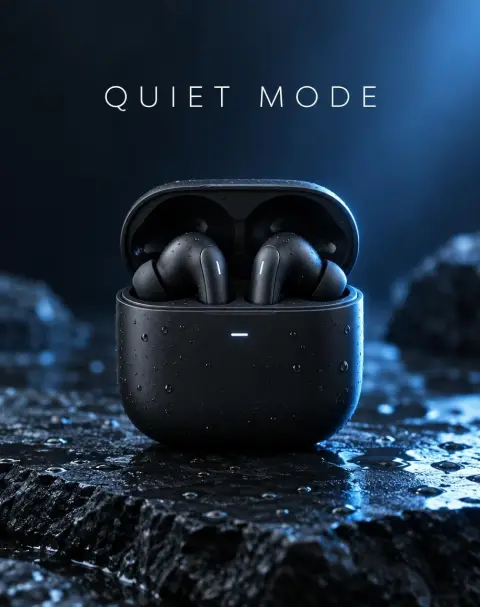
Matte black wireless earbuds case standing open on wet slate, tiny water drops, soft blue rim light, a clean minimal product ad with the words "QUIET MODE" in thin white type
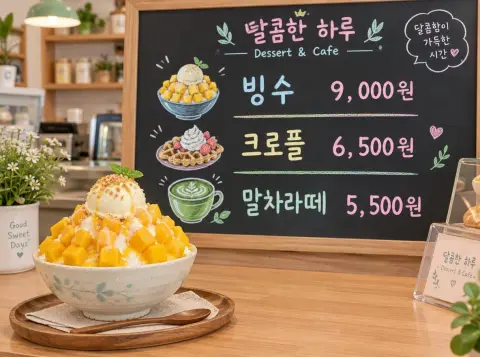
Korean dessert café menu board in pastel chalk listing "빙수 9,000원", "크로플 6,500원" and "말차라떼 5,500원", a bowl of mango bingsu on the counter in front
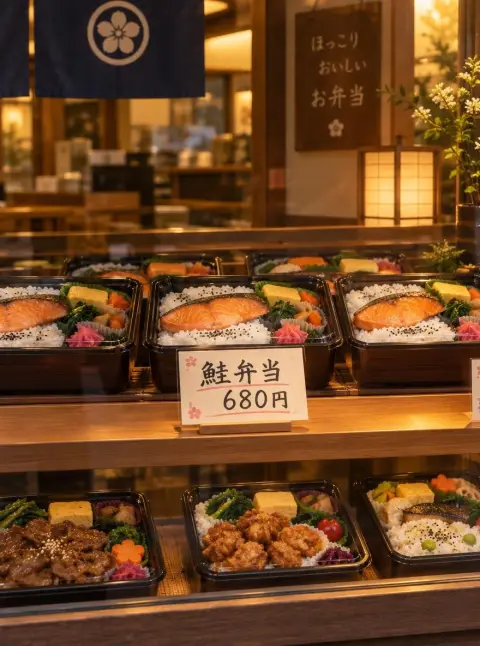
Japanese bento shop window display with a handwritten price card that reads "鮭弁当 680円", neat rows of bento boxes, warm evening light
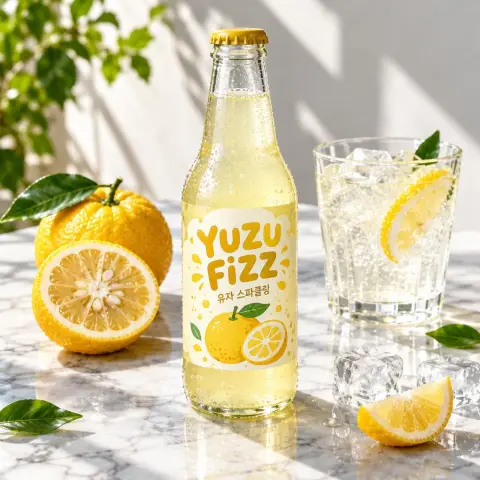
Glass bottle of yuzu soda on a sunlit marble table with sliced yuzu and ice, the label printed with "YUZU FIZZ" in a playful rounded font and "유자 스파클링" underneath, crisp shadows
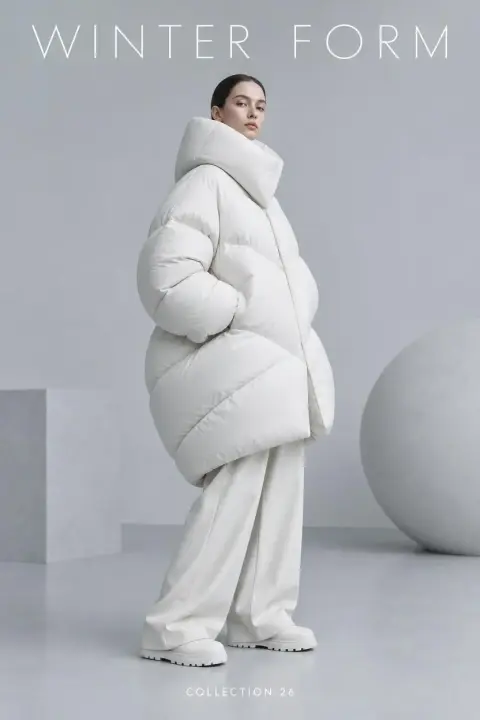
Minimal fashion poster with a model in a sculptural white puffer on a pale grey set, the headline "WINTER FORM" in thin wide letters at the top and "COLLECTION 26" small at the bottom
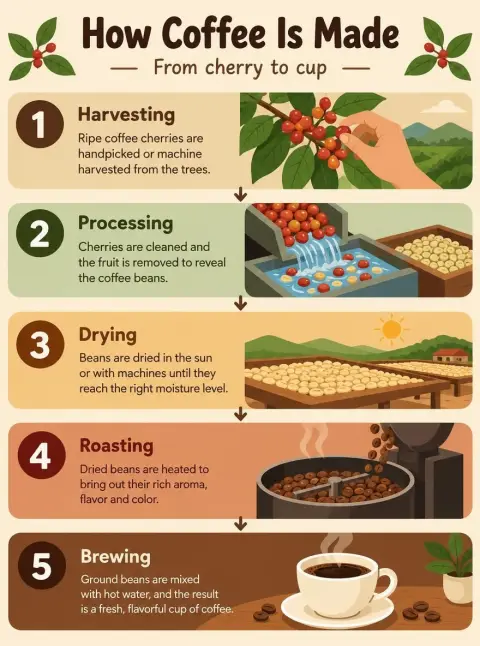
Flat vector infographic poster titled "How Coffee Is Made" with five numbered steps from cherry to cup, simple icons and short labels, warm earthy palette
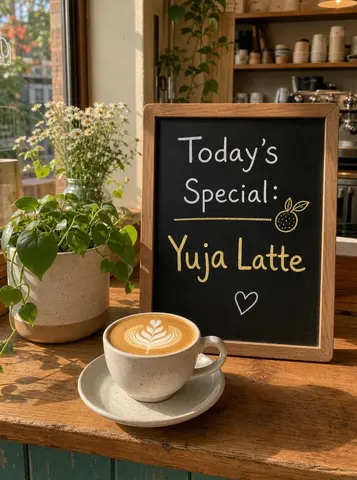 trước đây
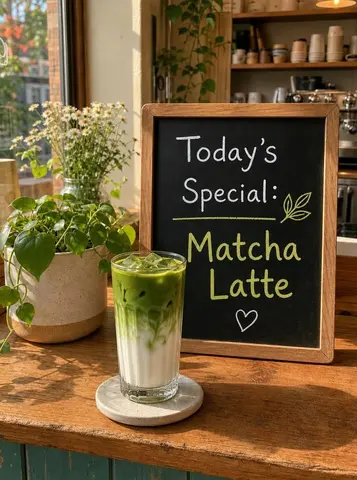 Sau
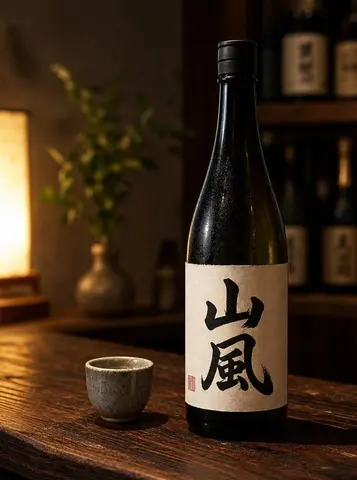 trước đây
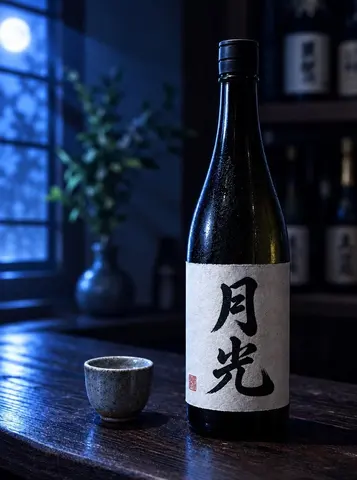 Sau
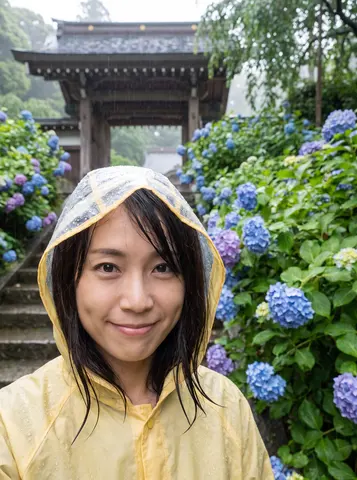 trước đây
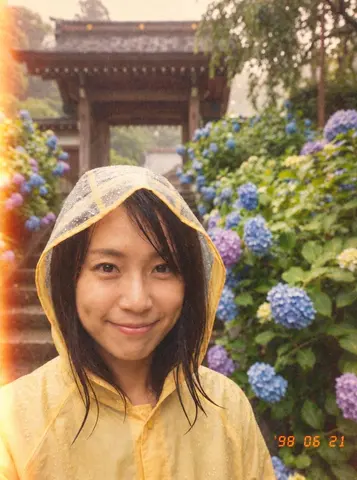 Sau
Settings of this model
- Từ
- OpenAI
- loại
- AI image model
- Cách tạo
- Văn bản thành hình ảnh · Chỉnh sửa hình ảnh
- Độ phân giải
- 1K / 2K
- Giá
- from 90 / image
Câu hỏi
Does GPT Image 2.5 Flare spell the text I put in quotes?
In the pictures on this page it did, in English, Korean and Japanese. OpenAI says text placement and clarity can still be imperfect, so check every picture. Quote the exact words, say where they go and say whether other text may appear.
How do I stop it adding text I did not ask for?
OpenAI’s guide says to state whether extra text is allowed. In our samples the model added text when the prompt did not say. We have not tested how reliably an instruction against it works.
How should I write an edit request?
Say what to change and list what must stay, one change at a time, as OpenAI’s guide advises. In our sample edits the scene stayed recognisable around the change, but small details moved too, so look at the whole picture.
Provider documentation we read
We read these pages and wrote the points that matter in our own words. The provider may change them.
- Image prompting guide (OpenAI) (developers.openai.com)
- Image generation guide (OpenAI) (developers.openai.com)
More prompting guides
- How to write prompts for GPT Image 2.6 FlareAI image model
- How to write prompts for GPT Image 2.6 SunburstAI image model
- How to write prompts for Nano Banana 2.1AI image model
- How to write prompts for MOSS ImageAI image model
- How to write prompts for Grok Imagine ProAI image model
- How to write prompts for Nano Banana ProAI image model
- How to write prompts for Nano Banana 2AI image model
- How to write prompts for IndigoAI image model
- How to write prompts for SaffronAI image model
- How to write prompts for CeladonAI image model
- How to write prompts for LapisAI image model
- How to write edit requests for UmberTrình chỉnh sửa ảnh AI
- How to write prompts for Kling Video 4.0AI video model
- How to write prompts for Seedance 2.5AI video model
- How to write prompts for Seedance 2.0 MiniAI video model
- How to write prompts for Kling V3AI video model
- How to write prompts for Kling O3 OmniAI video model
- How to write prompts for Veo 3.1AI video model
- How to write prompts for Veo 3.1 FastAI video model
- How to write prompts for SilkAI video model
- How to write prompts for LacquerAI video model
- How to write prompts for SatinAI video model
Tên của các mô hình, công ty và sản phẩm trên trang này là nhãn hiệu của chủ sở hữu tương ứng; Pickshot không liên kết với các bên đó, cũng không được các bên đó tài trợ hay tán thành.