Text to video · Free Lacquer videos
Text to Video AI: Write a Scene, Get a Short Clip
Text to video makes a short clip from words alone: describe who is in the scene, what happens and how the camera moves, and Pickshot's video studio turns it into a few seconds of video, 2 to 10 on the Pickshot series and up to 30 on some partner models. Write in English, Korean, Japanese or Chinese; your words reach the model exactly as written, so describe the camera, light and sound yourself. Start with Lacquer: free website videos up to 5 seconds at 720p. Sign in to generate. Other models show their price before you start.
Ingen installation. Intet betalingskort. Privat som standard.
Text to video at a glance
- Pris
- Lacquer videos are free on the website: 3 a day, up to 5 seconds per clip. Other video models show their credit price before you start.
- What you write
- One scene of up to 2,300 characters, in English, Korean, Japanese or Chinese; no picture is needed.
- Your words
- None on its own: your words reach the model exactly as written, so describe the camera, light, time of day and sound yourself.
- Længde
- Silk 5 s · Lacquer and Satin 2–10 s · MiniMax H3 5 s · partner models such as Wan 3.0 up to 30 s.
- Lyd
- Generate sound is on from the start: Lacquer, Satin and MiniMax H3 make sound with the picture; Silk makes silent clips.
- Camera
- Auto, Static, Push in, Pull out, Pan, Orbit or Handheld, added to your prompt in one tap.
- Account
- A free account is needed to make anything; signing up asks for no card.
- Sprog
- Pages, studio and prompts in English, Korean, Japanese and Simplified Chinese
- Watermark
- No visible watermark; each file carries metadata that marks it as AI-generated.
Opdateret
What is text to video?
Text to video is AI video generation that starts from words alone, with no picture: the model reads the description and works out the people, the place, the light and the movement over a few seconds, and some models also make the sound. It suits scenes you cannot film or have no picture for yet. When you already have the first frame, such as a photo, a drawing or a character, image to video keeps that picture as it is; text to video invents everything from your prompt.
Clips made from a written prompt
Each clip below was made in the video studio from one written prompt and no picture. Open one to watch it and read the prompt it was made from.
Why write your videos in Pickshot
Write in your own language
Describe the scene in English, Korean, Japanese or Chinese. Your words reach the model exactly as you write them, with nothing translated or rewritten, so name the camera, the light, the time of day and the sound yourself.
Ideas to start from
In Text to video the studio shows Today's ideas, four sample prompts that change every day. Start from this prompt fills the box and sets the ratio, and you change the words from there.
Camera moves in one tap
Pick Auto, Static, Push in, Pull out, Pan, Orbit or Handheld and the move is added to your prompt, so you need no film vocabulary. Auto leaves the camera to the model.
Sound from the same prompt
With Generate sound on, Lacquer, Satin and MiniMax H3 make the sound of the scene together with the picture. Silk makes silent clips; pick one of those three for a scene with sound.
Several models in one form
Silk, Lacquer, Satin and MiniMax H3 come first, then partner models such as Wan 3.0 and Seedance 2.0 Mini at their credit price. Each model shows its lengths, resolutions, ratios and whether it makes sound.
Free Lacquer videos
Lacquer is one of Pickshot's own video models: 720p clips with sound, from words or one start picture. Signed-in free accounts can make 3 Lacquer clips a day on the website, up to 5 seconds each, without credits; during a membership there is no daily count and a clip can use Lacquer's full 10 seconds.
How to make a video from text
Start with the free setup
The start button opens Lacquer at 720p and 5 seconds. Keep this setup for a free website clip, or deliberately choose another model after checking its price.
Describe one action
Keep one subject, one main action and one camera movement in each clip. For a photo, upload the start image first. Describe the movement rather than a sequence of cuts; use Plan one shot if you need help.
Review, download and continue
Review the finished clip in My creations. Download it, adjust one detail and try again, or use Make the next scene to continue from its final frame. Generate separate shots before joining a longer story.
What people write videos for
/01
Openers for Shorts and Reels
A 9:16 clip from one line to open a Short, Reel or TikTok, then trimmed and captioned in the video editor.
/02
Moods and loops
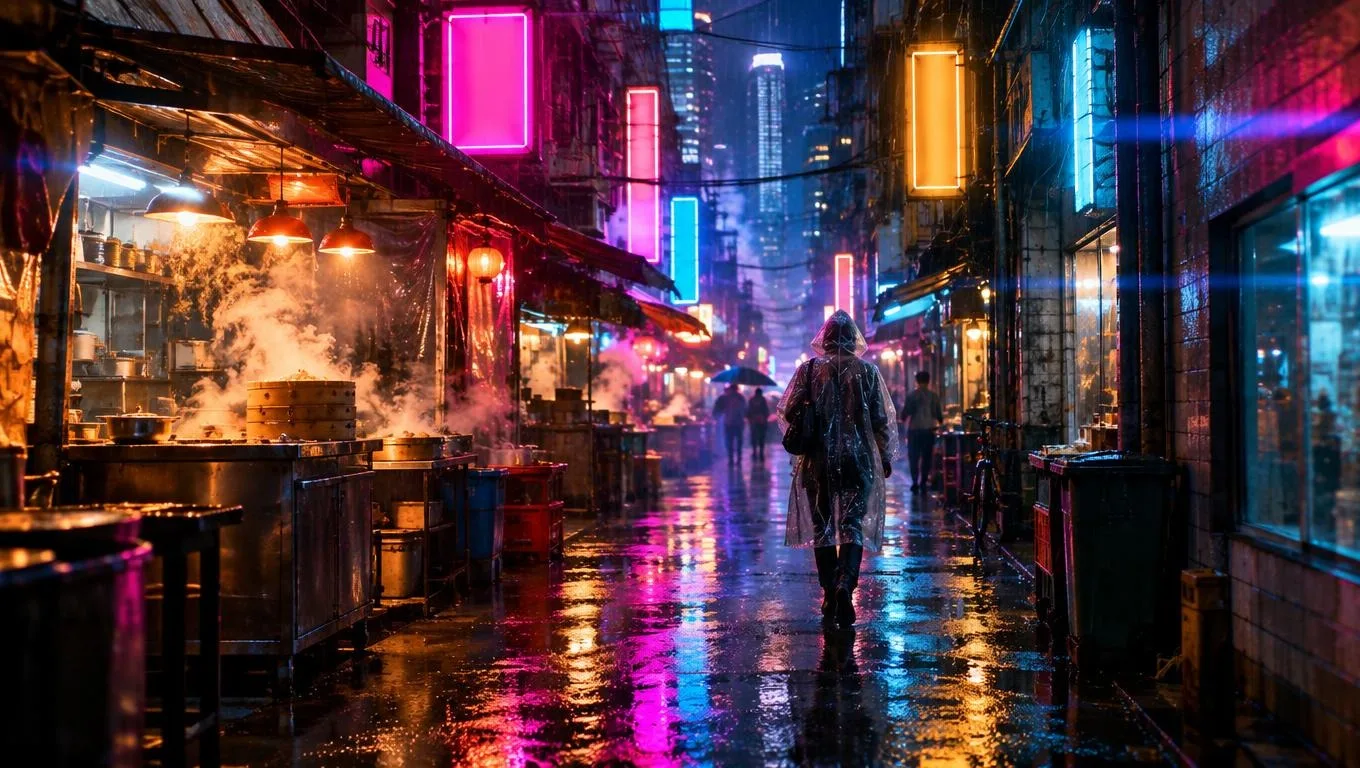
Rain on a window, maple leaves falling, a city at night: calm scenes for a stream background or a lo-fi track.
/03
Storyboard a scene
See how a moment from a script could move before you shoot, draw or animate it.
/04
Food and product moments
Steam, a bubbling pan or a slow push-in on a bottle, for a post or an ad draft.
/05
Scenes that are hard to film
A guofeng heroine on a bridge in the rain or a mecha in its hangar, from a sentence.
Køb kreditter efter behov; medlemskaber betales med kreditter
Nye konti får 50 credits. Gratis konti kan på hjemmesiden skabe ubegrænset mange billeder med de 5 grundmodeller uden at bruge kreditter. Lacquer-videoer er gratis på hjemmesiden: 3 om dagen, op til 5 sekunder pr. klip. Medlemmer bruger inkluderede modeller ubegrænset uden kredittræk. Andre modeller og API/MCP afregnes særskilt.
Pickshot-series models without credits · 4 generations at a time · Unlimited free-model images (Higher priority than Free)
Pickshot-series models without credits · 8 generations at a time · Unlimited free-model images (Higher priority than Plus)
Booster Passes og medlemskaber er midlertidigt udsolgt. Credits og medlemskaber, du allerede har, virker fortsat, til de udløber.
Spørgsmål
Is text to video free?
Partly. Lacquer, one of Pickshot's own video models, is free on the website for signed-in free accounts: 3 clips a day per person, each up to 5 seconds at 720p, made from text or one start photo, with sound when Generate sound is on. Every account has this limit from 15 November 2026. Every other video model shows its credit price before you start, and video made through the API or MCP always costs credits.
How many free Lacquer videos can I make?
Lacquer videos are free on the website: 3 a day, up to 5 seconds per clip. This website benefit does not require membership or credits. Queue, concurrency and fair-use limits still apply; free use does not promise an immediate start. API/MCP requests remain metered.
How long can a clip from text be?
Silk makes 5 seconds at 480p or 720p (16:9 or 9:16, no sound); Lacquer and Satin make 2 to 10 seconds at 720p with sound in five ratios; MiniMax H3 makes 5 seconds at 512p with sound, 21:9 included. Partner models such as Wan 3.0 go up to 30 seconds and 1080p. The studio shows each model's range when you pick it. For a longer story, press “Make the next scene” on a finished clip in My Creations (its last frame starts the next clip), then use “Join clips” there to put the scenes together into one video in your browser.
How should I write a text-to-video prompt?
Write one scene: who or what is in it, what happens, where and when, the light, and how the camera moves. A few seconds hold one clear action better than a list of events, so save the next action for the next clip (Make the next scene starts it from the last frame). Pick the camera move from the chips or write it yourself.
Can I write the prompt in Korean, Japanese or Chinese?
Yes. Write the scene in any of the four languages. Your words reach the model exactly as written, with nothing translated or rewritten, so describe the camera, light, time of day and sound yourself. How well each language is understood depends on the model.
Does the clip have sound?
Lacquer, Satin and MiniMax H3 make sound with the picture while Generate sound is on, which it is from the start. Silk makes silent clips, so choose one of those three for a clip with sound.
Which model should I start with?
Lacquer and Satin make 2 to 10 seconds at 720p with sound in five ratios, Silk makes 5-second silent clips at 480p or 720p, and MiniMax H3 makes 5 seconds at 512p with sound, 21:9 included; MiniMax H3 is not offered in the United States, the United Kingdom, the EU or the EEA. Each card in the studio lists what its model can do.
Is there a watermark?
No visible watermark is added. Every clip carries metadata that marks it as AI-generated, which some sites remove on upload; where a platform asks for it, label AI-made clips yourself.
Can I use the clips commercially?
You own the videos you make, and Pickshot's Terms do not forbid commercial use. Some models add conditions, listed on the licences page: what MiniMax H3 makes may not be used in the United States, the European Union or the United Kingdom, may not be used to train other AI models, and must be labelled as AI-made when posted publicly. Never use a clip to impersonate a real person.
How can I make the result follow my instructions better?
Use one short scene with one main action. For example: a person slowly turns toward the window while the camera stays still. For identity, start from one clear photo. Check the selected sound setting. Use the result’s refinement controls to change one detail at a time; exact motion, identity and speech are not guaranteed.
Write your first scene
Lacquer-videoer er gratis på hjemmesiden: 3 om dagen, op til 5 sekunder pr. klip.
Begynd at skabe gratis