AI Video Prompts: Camera Movement, Subject Action and 5 Fixes
Write clearer AI video prompts with a reusable formula, three camera templates, one real image-to-video sample and five practical fixes for drifting or confusing scenes.
Contents
Video example
A short image-to-video experiment: the framing moves closer to a wooden fox on a tabletop. Made with Pickshot Satin from a Saffron still image.
Compare the opening and closing framing. This is the slow-push result documented in the guide; the static-camera and pan templates were not tested in this example. One result does not guarantee stable shape or identical motion in future generations.
AI-generated example · Pickshot Satin · Source image: Saffron
Watch video: A slow camera push toward a wooden foxA useful AI video prompt says what moves, how the camera behaves and what should remain consistent. Start with one readable action in one continuous shot. When a clip goes wrong, simplify that instruction before adding more style words.
This guide follows Pickshot's video studio as checked on October 24, 2026. It includes one original wooden-fox example and practical directions to try, rather than a model ranking or a promise that a particular phrase fixes every result.
What belongs in an AI video prompt?
Use this working formula: visible subject + observable action + camera movement + light + sound (where supported). Describe physical changes: a leaf drifts, a character turns toward the window, or the camera moves closer. Words such as “cinematic” describe a look; they do not tell the model what should happen.
Keep the action small enough to read within the chosen clip length. A turn, a walk across the frame and a scene change are three different events. For a first attempt, choose one. This is a starting method, not a universal ban on complex scenes or longer prompts.
Choose the input before writing the motion
Open the video studio and decide whether you are starting from words or a picture. With text-to-video, establish the subject, surroundings and visible action. With image-to-video, upload a picture you own or have permission to use, choose a compatible output ratio and focus the prompt on movement.
The starting picture already supplies much of the appearance. Check small faces, overlapping limbs, cropped edges and unreadable labels before animating it. Asking a video model to repair an uncertain starting frame adds a second problem to the motion task.
The model publisher's image-to-video guide explains how the starting image conditions the scene. Its upstream features and settings are not a list of everything Pickshot offers; the controls visible in the studio determine what you can use here.
Three camera prompts to adapt
The following prompts use the same wooden fox on a tabletop. Keep the source picture and output settings unchanged when comparing camera instructions. The examples remain in English across this guide's translations so the exact wording stays comparable.
Static camera: make the environment move
A small wooden fox toy stays still on the tabletop. The camera remains fixed. A soft shadow from the window frame drifts slowly across the background. Quiet room ambience, no speech or music.
The intended motion is in the background. If you try this template, check whether the toy unexpectedly bends or moves, and whether the shadow behaves coherently. “Stays still” expresses an intention, not a geometric lock.
Slow push: move toward the subject
A small wooden fox toy stays still on the tabletop. The camera slowly pushes closer to the toy in one continuous shot. Soft window light remains steady. Quiet room ambience, no speech or music.
Here the framing changes while the toy is meant to remain stationary. Avoid adding a second command such as “zoom out” or “orbit around” to the same initial experiment. In the studio's camera controls, use Auto when the prompt already specifies the movement, so you do not add a conflicting direction.
Gentle pan: move across the scene
A small wooden fox toy stays still on the tabletop. The camera pans gently from left to right, keeping the fox in view. Soft window light remains steady. Quiet room ambience, no speech or music.
If you try this template, watch the edges as new background comes into view. A starting image contains no information about what lies outside its frame, so the model has to invent it. Use a smaller movement or a wider source picture when newly invented background distracts from the subject.
A real starting image and generated clip
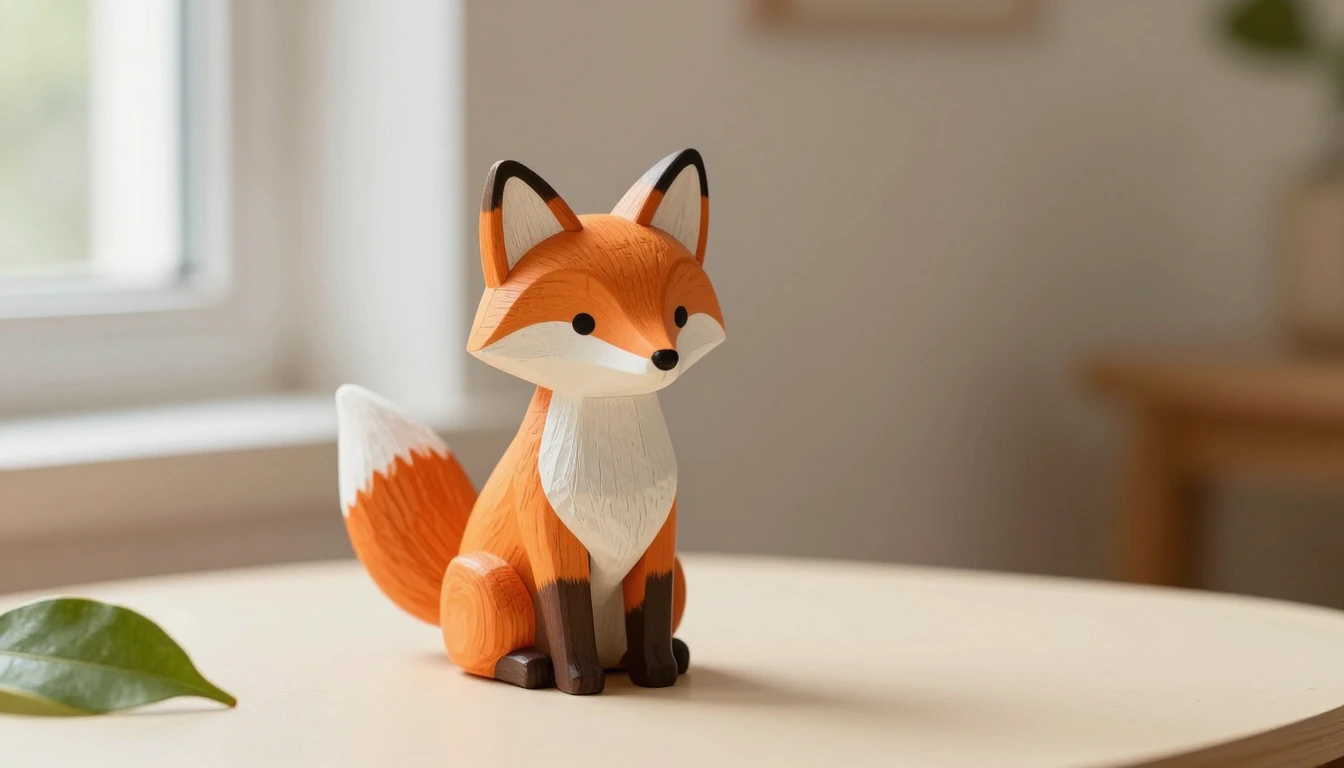
The cover is an AI-generated wooden-fox image made with Saffron. We used that image as the first frame of one Satin generation in Pickshot, with the slow-push prompt above, a requested length of 5 seconds, a 16:9 ratio, the 720p setting and a fixed seed (10242026). The studio's additional camera direction was set to Auto. The delivered MP4 is 1280 × 704 pixels at 24 fps, about 5.01 seconds long, and includes an audio track. These are this file's measured properties, not a promise for other runs. This is a single worked example, not a controlled comparison across models or prompts.
Open the generated wooden-fox clip. The static-camera and pan prompts are alternative templates; they were not generated or tested for this article. Watch the complete result and compare its first, middle and last frames with the cover before deciding which details you would accept.

These frames are extracted from the delivered clip at frame numbers 0, 58 and 116. In this clip, the framing moves progressively closer. The strip documents this one result only; it does not show that the toy or its details will stay exact in another generation.
For your own experiment, write down the source picture, model, prompt, ratio and length. Where a seed control is available, keep it unchanged while modifying one phrase. A shared seed alone does not make different models or changed software produce equivalent results.
Five problems to diagnose before trying again
| What you see | First thing to check | One change to try |
|---|---|---|
| The camera goes in the wrong direction | Prompt and camera control describe different moves | Keep one direction and set the extra camera control to Auto |
| The subject bends or changes shape | The action or viewpoint reveals uncertain geometry | Reduce movement and use a clearer starting frame |
| The clip feels static | The prompt lists appearance without an observable change | Add one visible action or one camera move |
| Light or background changes abruptly | Several scene changes or conflicting light sources were requested | Describe one place and one consistent lighting setup |
| Labels or letters are unreadable | Exact text was left to generation | Add verified text later in the editor |
Treat the table as a troubleshooting order, not proof of what caused a particular failure. Change one variable, generate again once your previous task has finished and compare both clips. Rewriting everything at once makes it harder to learn which instruction mattered.
Finish the clip rather than extending the prompt
Check the beginning, middle and end for face or object changes, unwanted cuts, background jumps and audio that does not fit. The fact that a model supports sound does not guarantee a useful soundtrack. Add exact captions and make trims in the video editor instead of asking the generator to render finished typography.
If your next goal is a character scene, continue with the AI influencer video guide. For a sellable item with packaging or a logo, use the separate product-photo video checklist.
Try one focused shot in Pickshot
Sign in, use a source image you have permission to use, choose a model that supports your input and paste one prompt into the video studio. Adapt the subject to your own scene and check the displayed length, resolution, sound option and price before starting.
Outside-provider models cost credits. When a charged generation fails, its credits are automatically refunded. The pricing page lists the current conditions; free image generation is a separate offer.
The broader prompting principles are also described in the publisher's prompting guide. Keep its model-specific features separate from the options currently available in Pickshot.
Questions
How is an AI video prompt different from an image prompt?
An image prompt describes a frame. A video prompt also describes what happens over time: subject action, camera movement and, when supported, sound. With a starting image, focus on the change rather than rewriting every visible detail.
What camera movement should I try first?
Try a static camera or a slow push toward a stationary subject. Either gives you fewer changing elements to inspect than a large orbit or a sequence of cuts. These are suggested starting points, not guarantees of stable results.
Why does my AI video change the face or object shape?
New viewpoints, large movement and ambiguous starting pictures can reveal details the model has to invent. Prepare a clearer frame, simplify the action and compare the beginning, middle and end. If an exact face, label or shape matters, reject changed results rather than relying on a preservation instruction.
Can I try AI video prompts for free on Pickshot?
You need to sign in to generate. Pickshot-series video is free for now, within the allowance shown for your account, and a free account can have only one free video queued or running at a time. Outside-provider models cost credits, and free image generation is a separate offer. Check the price shown in the studio before starting.
Choose an image, video or audio model, look through its settings and start making. Sign-up is free, and a free account makes the free image models unlimited.
Make your character