Keep the subject · swap the scene
AI Background Changer: Put Your Subject Anywhere
To change a photo's background, open it in Pickshot's AI background changer, describe the new scene (for example "a sunny cafe window seat" or "on a marble tabletop") and press Replace background: people and objects stay as they are and only the background is replaced. Choose Fast (free), Balanced (18 credits) or Best (61 credits); the price is on the button before you run.
No installation. No credit card. Private by default.
What is an AI background changer?
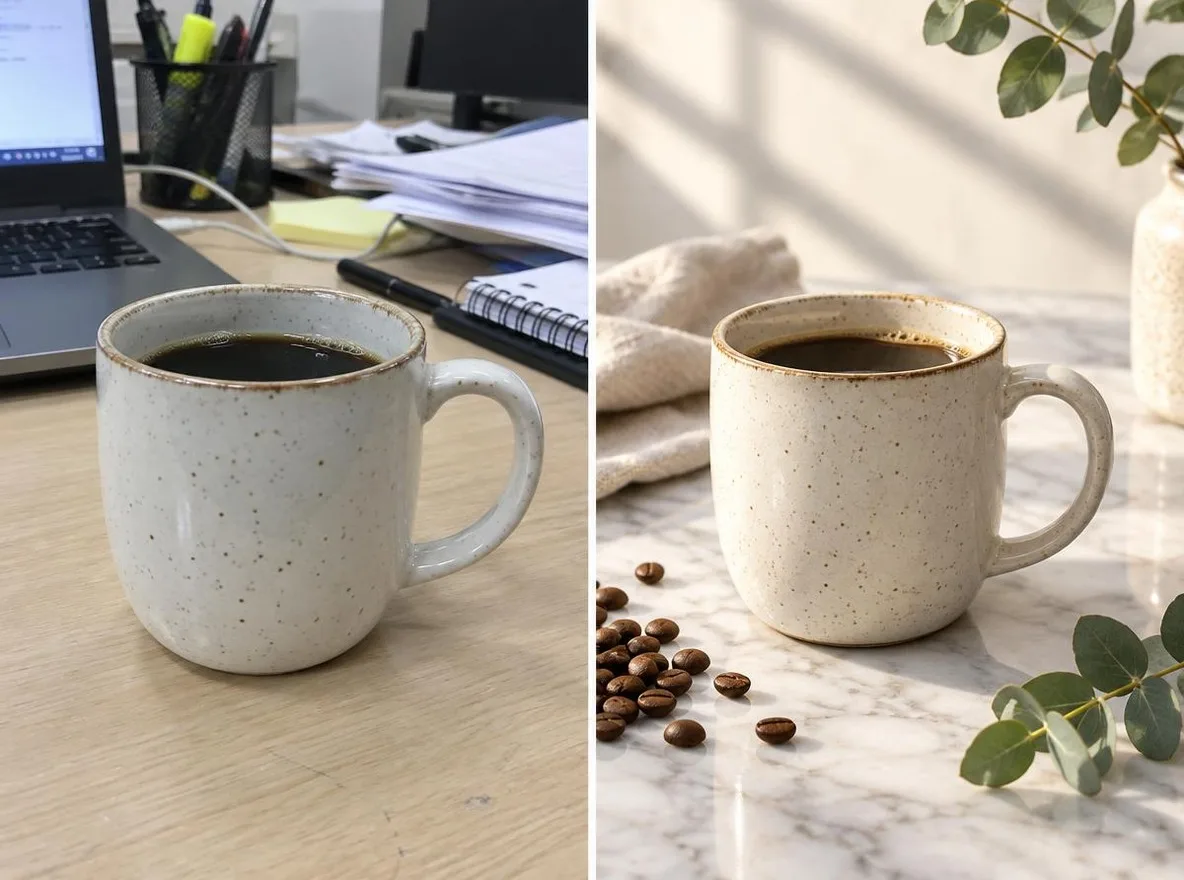
An AI background changer separates the subject of a photo from its surroundings and paints a new setting behind it, aiming for a result that reads as one photo rather than a cut-and-paste. In Pickshot it is the Replace background tool: you write the scene in your own words or tap a suggestion, pick a quality level, and the result is saved as a new version you can compare with the original. If you only need a plain transparent, white or coloured background, Remove background does that for 1 credit.
Why change backgrounds with Pickshot
Describe any scene
Type the place in your own words or tap a suggestion: Plain white studio, Seoul street at night, Cherry blossom path, Beach at sunset or On a marble tabletop.
Subject stays, scene changes
The tool is built to keep people and products as they are; for portraits, keep Keep the face as it is switched on under Advanced settings.
Three quality levels, priced first
Fast (FLUX.2 Klein 4B) is free, Balanced (FLUX Kontext Pro) costs 18 credits and Best (Nano Banana Pro Edit) costs 61, each shown before you run.
Reference photos for the look
Add up to 3 reference images, such as a location or a mood shot, and make 1–4 results per run to compare.
Match the light afterwards
Use Relight to set golden hour, studio or neon light and the direction it comes from, so the subject sits naturally in the new scene.
Plain backgrounds cost less
For a transparent, white or single-colour background, use Remove background instead: 1 credit with the standard engine.
How to change the background of a photo
Open the photo
Drop a JPG, PNG or WebP (up to 20 MB), use Choose a file, or paste it. The Replace background tool is already selected.
Describe the new background
Under What should change? type the scene or tap one of the suggestions under Try one of these, then choose Fast, Balanced or Best under Quality.
Replace and compare
Press Replace background and check the result with Compare with original. Try other scenes, pick your favourite version in History, then Download.
Manual compositing vs. Pickshot
Putting a subject on a new background used to take a cut-out, a separate background photo and careful blending. Here is the difference.
Mainstream tools
- − Cut out the subject, then find a background photo separately
- − Match light, shadows and perspective by hand
- − Edges often need cleaning up after the composite
Pickshot
- ✓ Describe the scene in a sentence or tap a suggestion
- ✓ People and products are kept; only the background changes
- ✓ Fast free, Balanced 18, Best 61 credits, shown first
- ✓ Relight, upscale or expand in the same editor
Use cases
/01
Product shots in context
Place a mug on a marble tabletop or a cosmetic by a sunlit window for store listings and social posts.
/02
Profile and portfolio photos
Swap a messy room for a plain studio or a soft outdoor scene while keeping your face as it is.
/03
Seasonal content
Put the same photo on a cherry blossom path in spring or a snowy street in winter instead of reshooting.
/04
Thumbnails and Stories
Move a person or character to a neon street or a beach at sunset for a YouTube thumbnail or an Instagram Story.
Pay for what you use, in your currency
8 images/day without an account; 100/day plus 50 credits with a free account
1,000 credits every month
3,500 credits every month
Preview period: generation opens soon, and every screen and option is available to explore now.
Questions
How much does it cost to change a background?
Fast is free (it uses the open FLUX.2 Klein 4B model and counts toward your daily free allowance), Balanced costs 18 credits and Best 61 credits per result. The price is on the button before you run.
Will it change my face or the product?
The tool is designed to keep people and objects and replace only what is behind them. For portraits, leave Keep the face as it is switched on under Advanced settings, and compare with the original before you download.
How is this different from Remove background?
Remove background cuts the subject out onto transparent, white or a colour you pick, for 1 credit (9 with the precise engine). Replace background generates a new scene behind the subject from your description.
What files can I use?
JPG, PNG or WebP up to 20 MB. Photos larger than 4096 px on the long side are scaled down to 4096 px when opened.
Is my photo uploaded?
When you press Replace background, the photo and your description are sent to the AI model provider that runs the job. Free tools such as crop and colour stay in your browser. See the privacy policy for details.
Can I use the result commercially?
Check Pickshot's Terms of Service and the licence of the model you chose before commercial use, and only edit photos you own or have permission to use.
Does it work on a phone?
Yes, in mobile browsers with no app to install, and tapping a suggestion saves you typing on a small screen.
Put your photo somewhere new
Describe a scene, see the price, and replace the background. Sign in for 50 free credits.
Start creating for free