AI Product Video from One Photo: A Holiday Ad Workflow
Turn a product photo into a short holiday ad with a three-shot plan, copyable motion prompts and a checklist for labels, shape and color.
Contents
Video example
A short product-motion example using a closed wooden keepsake box with a mother-of-pearl lid. Created through Topview with Seedance 2.5 from a Pickshot Saffron still image.
This additional example uses a wooden box, while the guide plans an ad around a mug. Watch the framing and compare the lid, edges and latch with the first frame. It illustrates a small camera movement, not guaranteed preservation of product details.
The camera moves closer to the wooden box, and part of the product is cropped out at the end. For an ad that needs the whole product visible, trim earlier or try a smaller camera movement.
AI-generated example · Topview / Seedance 2.5 · Source image: Pickshot Saffron · Silent example. The description below explains the visual content.
Watch video: One camera movement for a product photoTo make an AI product video from one photo, approve the still image first, animate a small movement, and inspect the product before editing the clip into an ad. For a holiday campaign, build three separate shots around the same item: a reveal, a detail and a closing frame.
This guide follows Pickshot's photo-editing and image-to-video tools as checked on October 23, 2026. The example is a ceramic mug for a seasonal gift campaign. Shot lengths are planning examples, not promises about generation time or output fidelity.
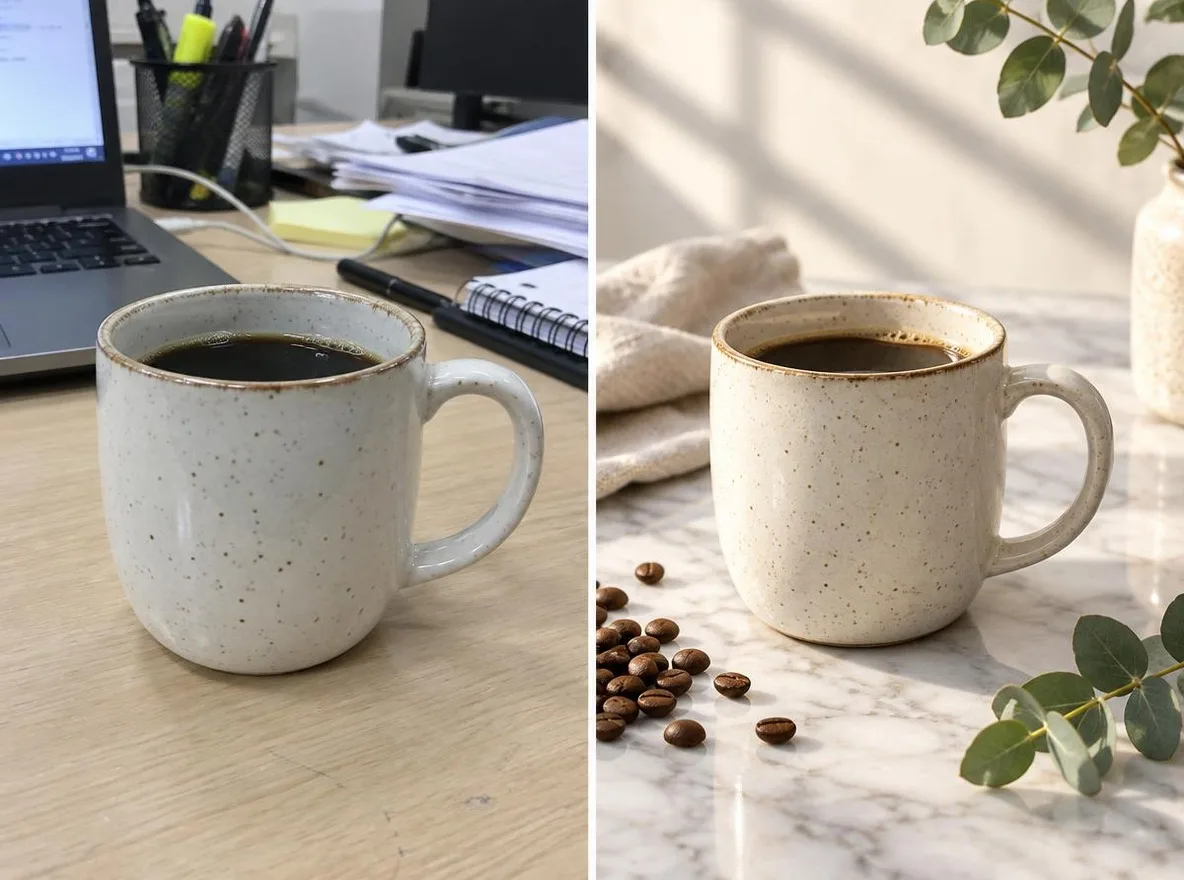
The cover illustrates a product-photo background change. It is not a sequence of frames from a generated video.
1. Choose a photo that clearly shows the product
Use a sharp photograph you own or have permission to use. Keep the entire mug, including its handle and base, inside the frame. A plain background makes it easier to judge whether a later edit has changed the object.
Write down three details to preserve: the cream glaze, the dark speckles and the curved handle. For a bottle or box, use its proportions, cap and label instead. Compare results with the photograph rather than relying on memory.
Avoid starting with an invented rear view. A single photograph contains no reliable record of the hidden side, so a large camera orbit asks the model to fill in information you cannot check from that image.
2. Prepare the still before adding movement
Open Product Photography to try a new setting, or use photo editing for a specific instruction. Keep the first change small: a cleaner tabletop, softer light or space beside the item for later text.
Place this ceramic mug on a warm neutral tabletop for a holiday gift campaign. Preserve the visible mug shape, handle, glaze and speckle pattern. Add a soft background and clear space on the right for text added later.
The instruction expresses your intent; it does not lock those details. Reject a still if the handle thickens, the rim changes or a label becomes unreadable. Fix the image before asking a video model to animate it.
Keep exact discount amounts, dates and product names out of the generated scenery. Add them as editable text after choosing the visuals, where you can check spelling and update an offer without generating the scene again.
3. Plan three short shots
| Shot | Starting still | One movement to try | What to inspect |
|---|---|---|---|
| Product reveal | Full mug with space around it | A gentle camera push toward the mug | Rim, handle and silhouette |
| Detail | A crop that still identifies the same mug | A small change in background light | Glaze color and speckles |
| Closing frame | Product beside empty space for a caption | Little or no visible product motion | Readable overlay and unchanged product |
If the selected tool supports it, try a five-second clip for the reveal. Review it before making the other shots. A finished short might use only two or three seconds from each clip; choose the rhythm during editing.
The closing frame can simply be the original photo held on screen. Every shot does not need AI motion, especially when an exact label matters.
4. Describe motion in the video prompt
Open AI video, choose a model with image-to-video support and attach your approved still as the first frame. Check the available duration and aspect ratio before starting. A vertical ad may use 9:16 when the selected model offers it; crop deliberately so the handle stays visible.
For the reveal, try this motion prompt:
A gentle, continuous camera push toward the mug. The mug stays on the tabletop. Soft warm light remains steady throughout the shot.
For a quieter alternative, try:
The camera holds its position. A soft light moves slowly across the background behind the mug. The product stays still in the foreground.
Change one instruction at a time. If the first attempt bends the handle, simplify the movement before adding falling ribbons, steam or a rotating platform. More action gives you more details to inspect.
For additional prompting guidance, see Runway's motion guide. It describes a different product; its controls and results are not a promise about Pickshot.
5. Check the result before editing the ad
Pause at the beginning, middle and end, then watch the full clip. Use this acceptance checklist:
- The visible product shape, handle or cap still matches the photograph.
- Color and surface details remain credible under the changed lighting.
- A logo or label has not turned into different lettering.
- The product stays in frame and does not gain extra parts.
- Any sound is intentional; a silent product shot does not need generated speech.
If a check fails, replace that shot rather than building the campaign around it. For exact packaging, use a conventional photo-based edit instead of a generated transformation.
6. Repair common problems and finish
| Problem | First change to try |
|---|---|
| The product bends during a camera orbit | Return to the photographed angle and try a smaller camera move |
| The label looks correct only at the start | Use the original photo for the label shot and add text in editing |
| Every shot has a different color | Reuse one approved lighting reference and compare with the source |
| The clip feels busy | Remove extra effects and keep one movement |
Trim the usable sections in your editor, add a verified offer and check the final crop on a phone. Pickshot's video editor is available for supported clip-editing tasks; use an editor with text overlays for your final promotional copy.
Start with one product photo and one short clip. For clearer instructions, continue with the native-language prompt guide. For a campaign led by an original fictional creator, read the AI influencer video workflow.
Questions
Can I make an AI product video from just one photo?
One clear photo can be the first frame of a clip. To make several scenes, prepare a separate still for each. A single photo does not show hidden sides of the product, so keep the movement close to the visible angle.
Will AI keep my product logo and packaging exact?
Exact preservation is not guaranteed. Compare labels, shape, color and accessories with the original. For a frame that must show an exact label or offer, use the original photograph and add verified text in your editor.
What should I write in an image-to-video prompt?
Describe one camera movement or a small environmental change. For example, ask for a gentle push toward a stationary mug. A prompt is a direction to try, not a guarantee that the product will remain unchanged.
Are product photo edits and videos free on Pickshot?
Free image generation, reference-based edits and video have different conditions. Check the selected tool's displayed free status, price and allowance. Free accounts can have one active video at a time; start the next after it finishes.
Choose an image, video or audio model, look through its settings and start making. Sign-up is free, and a free account makes the free image models unlimited.
Make your character