How to Make an AI Influencer Video: A Three-Scene Workflow
Build an original AI influencer, prepare scene images, animate them from a first frame and edit a short video. Includes a three-scene plan, motion prompts and identity checks.
Contents
Video example
A short portrait of an original fictional adult lifestyle creator. Created through Topview with Seedance 2.5 from an existing AI-generated reference portrait.
Watch the gaze, expression and hair, then compare the face at the beginning and end. This illustrates one restrained portrait shot, not the entire three-scene workflow or a guarantee of identity consistency. The person is fictional; no dialogue or lip-sync is demonstrated.
AI-generated example · Topview / Seedance 2.5 · Fictional adult character · Silent example. The description below explains the visual content.
Watch video: A small movement for a fictional AI creatorTo make an AI influencer video, choose an original fictional creator, prepare a picture for each scene, and send those pictures into video generation as first frames. Describe the movement for each clip, then edit the clips into one short. Working in scenes makes it easier to spot and replace a weak result before building the whole video around it.
This guide reflects Pickshot's character, AI influencer, video and video-editing workflow on October 21, 2026. The three-scene plan and timings below are editorial examples, not promises about model duration, identity consistency or output quality.
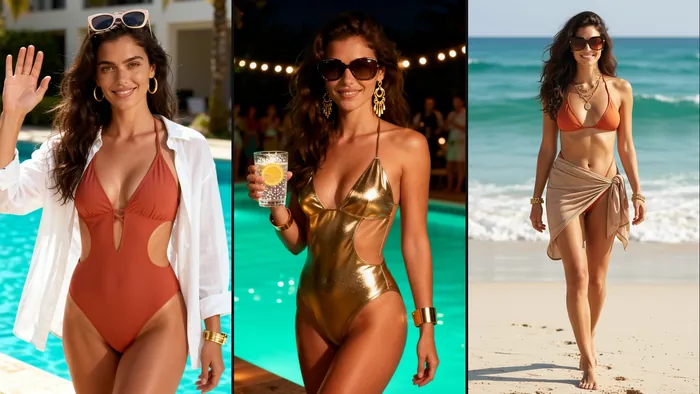
The cover is an AI-generated example made from text with Pickshot's free Indigo image model. It is not a photograph of a real person or a demonstration of a video result.
What is an AI influencer video?
An AI influencer video follows a fictional creator you design through scenes such as daily life, fashion or travel. The creative task is to carry that person's recognizable appearance and personality into a new place or action. Making the still, animating it and editing the result are connected, separate steps.
1. Save your character and its defining details
Create an original person in Characters and save a face you like. You can also use reference pictures of a fictional character you prepared. Keep a short note of the traits you want to repeat: hairstyle, outfit and overall mood.
For example: “Long brown hair, a cream knit top, a calm and cheerful university lifestyle.” For the first set of scenes, try changing the place and pose while keeping those central traits.
Continue into AI Influencer, then check the name, bio, niche and face picture before saving the profile. A character and an influencer profile are separate saved items. The reference picture carries visual information; a name alone does not lock a face across every result.
2. Plan a short story in three scenes
A simple structure is enough: introduce the creator, show one everyday moment, then end with a shot that invites another post. This table suggests an approximately twelve-second edit. Adjust it to the lengths your selected model supports and the usable footage you receive.
| Scene | Example edit range | Picture to prepare | Movement to request |
|---|---|---|---|
| Introduction | 0–3 seconds | A terrace portrait with a clear face | A slight turn toward the camera |
| Everyday moment | 3–8 seconds | The character seated by a café window | A slow change of gaze |
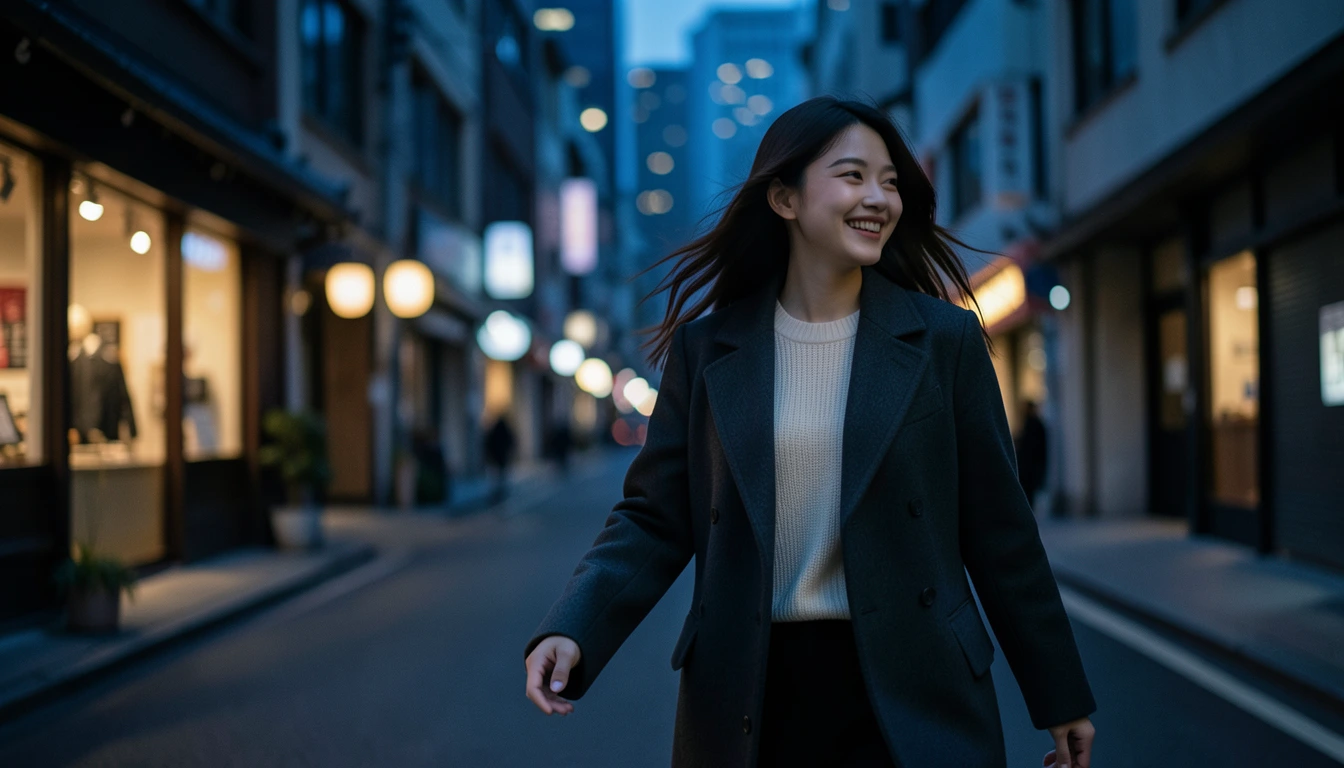
| Closing shot | 8–12 seconds | The character on an evening street | A little movement in the hair |
Changing the setting, action and camera movement all at once makes it harder to understand why a result changed. Start with one action per scene.
3. Finish the scene pictures before animating them
Use the saved face as a reference when creating each scene. Choose the intended framing early if you are planning a vertical short. Compare results that keep the outfit and hairstyle while changing the background.
A scene prompt can be as direct as this:
The fictional character in the reference picture is seated beside a café window at dusk.
Long brown hair, a cream knit top and a natural expression.
A waist-up composition with a clearly visible face and soft window light.
Check the eyes, nose, jawline, hair and hands before generating video. Animating a picture you already dislike gives you another version of the same problem to fix. See the character consistency guide for more detail on carrying reference pictures through the workflow.
4. Use each picture as a video's first frame
Choose Make a video from a saved character or finished picture to carry that image into the first frame. In the video studio, check the image, model, ratio and duration before describing the movement. Supported lengths and input modes vary by model.
Try a restrained motion prompt:
The person slowly turns their gaze toward the camera.
Their hair moves slightly in the breeze and their expression stays natural.
The camera remains stable.
Check a small movement before attempting a full-body action, large camera rotation or several actions together. Compare the beginning, middle and end of a clip. A good first frame does not guarantee the same face or clothes throughout.
Turning a picture into motion does not automatically create dialogue, singing or accurate lip-sync. If the post needs a voice or song, check the relevant audio tool and the chosen model's supported options separately.
5. Edit the clips and choose what to publish
Arrange your clips in the video editor and keep the sections where the expression and action feel natural. Begin with simple cuts at moments that connect the story. You can use Make a song or Audio separately when the edit needs music or a voice.
Before publishing, check whether the creator still reads as the same character, inspect the face and hands, and compare brightness and framing across the cuts. Review any audio you added and its usage conditions. Check the destination platform's AI-content disclosure requirements as well.
For example, YouTube asks creators to disclose realistic scenes generated or meaningfully altered with AI. Read its generative AI disclosure guidance when preparing an upload.
Where should I check the cost?
Free accounts have unlimited use of free image models. Text-only image generation and reference-based picture editing have different conditions. Video, voice and music may have a credit price or a daily allowance depending on the model and current availability. Use the information shown before each run and on the pricing page.
Start in AI Influencer with a face and profile, then make one picture and one short movement. Once you like that clip, use the same process for the next two scenes.
Questions
Can I make an AI influencer video from one photo?
You can start a first clip by sending one prepared picture as its first frame. For a short with several locations, prepare a picture for each scene, generate the clips separately and edit them together.
Will the face stay exactly the same in every scene?
That is not guaranteed. Faces, hair, clothing and small details can change even with reference pictures. Compare each still and the beginning, middle and end of every clip; remake results that no longer read as the same character.
Are AI influencer videos unlimited and free?
Unlimited use on free accounts applies to free image models. Reference-based picture editing and video have separate conditions and limits. Check the displayed free status, credit price and remaining allowance before running a job.
Does adding a character photo automatically create speech or singing?
Animating a picture and generating speech, singing or accurate lip-sync are separate tasks. A first-frame image does not automatically produce a voice or synchronized mouth movements. Check the selected tool's supported inputs and audio options.
Choose an image, video or audio model, look through its settings and start making. Sign-up is free, and a free account makes the free image models unlimited.
Make your character