2× · 4× · quick or Topaz
AI Image Upscaler: Enlarge Photos 2× or 4×
To upscale an image, open it in Pickshot's AI image upscaler, choose 2× or 4×, pick Quick upscale or Detail restore (Topaz), and press Upscale: the picture gets more pixels and soft detail is sharpened. Quick upscale costs 1–3 credits for most photos and Detail restore costs 36 credits for results up to 24 megapixels. The result size, such as 2048×2048, is shown before you run.
No installation. No credit card. Private by default.
What is an AI image upscaler?
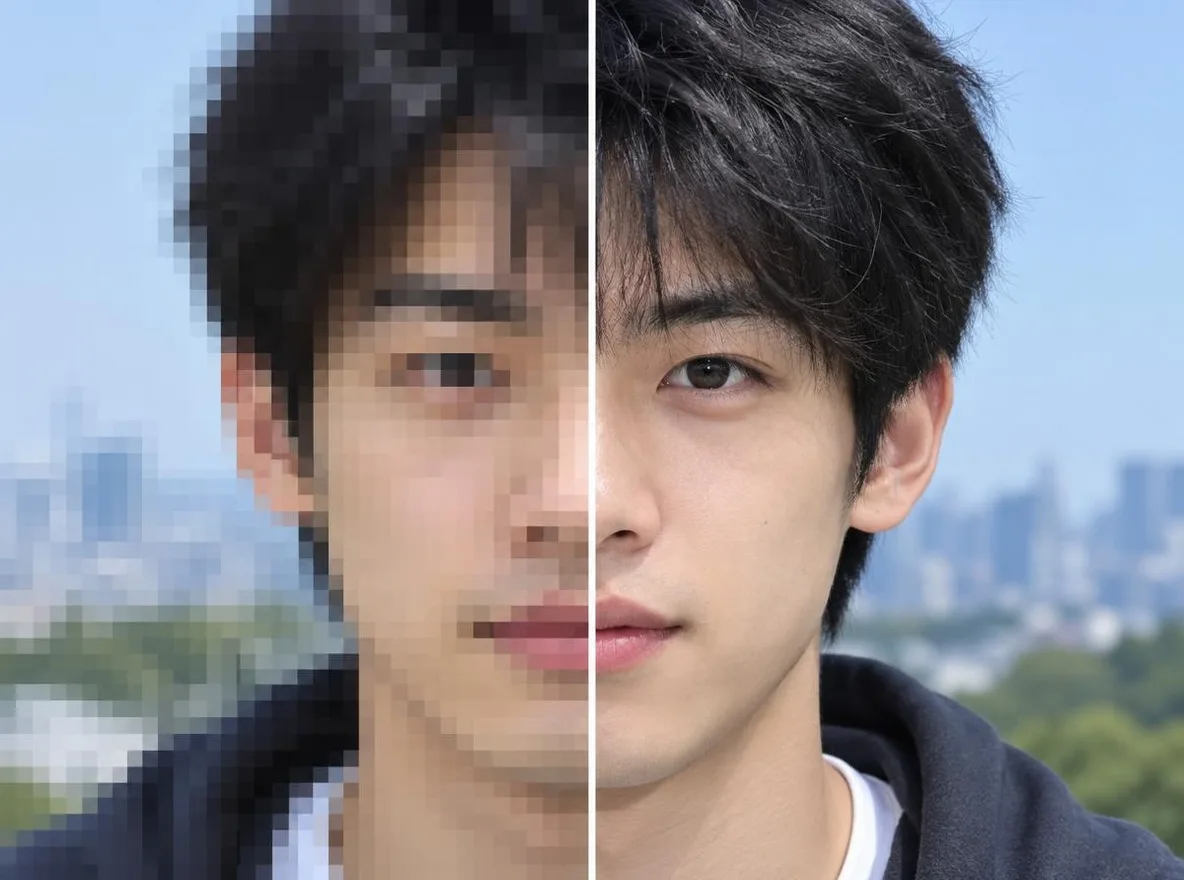
An AI image upscaler increases a picture's resolution by predicting the detail that belongs between the original pixels instead of simply stretching them, so edges, textures and faces stay sharper at the larger size. Pickshot's Upscale tool has two engines: Quick upscale (an ESRGAN-type model) for fast, low-cost enlargements and Detail restore (Topaz) for photos that need more texture recovered. Results up to 2,560 px on the long side are available on every plan; larger results, including 4K, need Pro or Max.
Why upscale with Pickshot
2× or 4×, size shown first
Pick the scale and the editor shows the exact result size, for example 1024×1024 → 2048×2048, before you spend anything.
Two engines for two budgets
Quick upscale costs 1–3 credits for most photos (2 for a 2048×2048 result, 3 for 3840×2160). Detail restore (Topaz) costs 36 credits up to 24 MP and 72 up to 48 MP.
Made for small or soft images
Bring old phone photos, screenshots, small web images and AI images made at 1K up to a size that holds up in print or on a big screen.
4K and larger on Pro and Max
Free and Plus can upscale to 2,560 px on the long side; Pro and Max unlock bigger results such as 3840×2160 and 4096×4096, up to 8,192 px.
Compare before you download
Use Compare with original or hold \ to check the detail, and step back through History if you prefer an earlier version.
Finish the photo in one place
Erase, expand or remove the background first, then upscale as the last step before you download.
How to upscale an image with AI
Open the image
Drop a JPG, PNG or WebP (up to 20 MB), use Choose a file, or paste it. The Upscale tool opens with 2× selected.
Choose scale and engine
Under Scale pick 2× or 4× and check the Result size. Under Engine pick Quick upscale or Detail restore (Topaz); each shows its price.
Upscale and download
Press Upscale, compare with the original, then Download the larger file.
Typical upscalers vs. Pickshot
Upscaling is offered by many tools. Here is what changes in Pickshot.
Mainstream tools
- − Often a single engine for every kind of photo
- − Usually a separate app or site after your other edits
- − Before and after checked in another window or app
Pickshot
- ✓ Quick upscale for 1–3 credits or Topaz detail restore for 36
- ✓ Exact result size shown before you run
- ✓ Erase, expand and upscale in one editor with History
- ✓ Compare with original in the same view
Use cases
/01
Old phone photos
Enlarge small or soft photos from older phones 2× or 4× before printing or sharing them.
/02
Store product images
Bring your own small product shots up to the size your store recommends.
/03
AI images at higher resolution
Upscale images generated at 1K to 2048 px, or to 4K on Pro, for wallpapers and prints.
/04
Thumbnails and banners
Upscale a frame grab or a screenshot so it stays sharp as a YouTube thumbnail or a banner.
Pay for what you use, in your currency
8 images/day without an account; 100/day plus 50 credits with a free account
1,000 credits every month
3,500 credits every month
Preview period: generation opens soon, and every screen and option is available to explore now.
Questions
How much does upscaling cost?
Quick upscale costs 1–3 credits for most photos (for example 2 for a 2048×2048 result and 3 for 3840×2160). Detail restore (Topaz) costs 36 credits for results up to 24 megapixels and 72 up to 48. The price is shown on each engine and on the button.
Can I upscale to 4K?
Yes, on Pro and Max. Free and Plus can make results up to 2,560 px on the long side; larger results such as 3840×2160 or 4096×4096 need Pro or Max. The largest result is 8,192 px on the long side.
What is the difference between Quick upscale and Detail restore?
Quick upscale enlarges and sharpens at a low price and suits most photos and AI images. Detail restore (Topaz) costs more and is meant for photos where faces, text or fine texture need more recovery.
Which files can I upscale?
JPG, PNG or WebP up to 20 MB. Images larger than 4096 px on the long side are scaled down to 4096 px when opened, so the upscaler helps most with small and medium images.
Is my image uploaded?
Yes. To run the upscale, the image is sent to the AI model provider that processes the job. Free tools such as crop and colour stay in your browser. See the privacy policy for details.
Can I use the upscaled image commercially?
Check Pickshot's Terms of Service and the engine's licence first, and only upscale images you own or have permission to use.
Does it work on a phone?
Yes, in mobile browsers, with no app to install.
Give a small photo more pixels
Pick 2× or 4× and see the result size and price before you run. Sign in for 50 free credits.
Start creating for free