Scene first, then motion
AI Product Video Generator: From One Photo to a Clip
To make a product video, start from one clear photo, put the product in a setting that suits the brand, and animate that picture. On Pickshot that is two steps. The Product scenes app redraws the setting (marble, water, a pastel studio, nature or a gift-season set) while it is told to keep the product’s shape and label, and image to video turns the finished picture into a short clip with a slow turn, a light sweep or a camera push-in. A free account can make the clip on Lacquer, up to 5 seconds; other models show their price first.
Không cần cài đặt. Không có thẻ tín dụng. Riêng tư theo mặc định.
AI product video at a glance
- Step 1, the scene
- The Product scenes app takes one product photo and a scene: Marble, Water, Pastel studio, Nature or Gift season. The result is a square picture, and its price is shown before you run.
- Step 2, the clip
- Image to video uses that picture as the first frame. Lacquer is the free model: Lacquer videos are free on the website: 3 a day, up to 5 seconds per clip. Other models show their credits before you run.
- Thời lượng
- Free-plan clips run up to 5 seconds. A membership has no length limit of its own beyond what the model makes: Lacquer 10 seconds, partner models up to 30.
- What stays the same
- The app is told to keep the product’s shape and label, but text, logos and small details can still change. Compare with the real product before you publish.
- Without the app
- Already have a product photo you like? Skip step 1 and use it as the first frame.
- Account
- A free account is needed to make anything; signing up asks for no card.
- Ngôn ngữ
- Pages, studio and prompts in English, Korean, Japanese and Simplified Chinese
- Watermark
- No visible watermark; each file carries metadata that marks it as AI-generated.
Đã cập nhật
What is an AI product video generator?
A product video generator turns a product shot into moving footage without a shoot: the product turns, light slides across it, the camera drifts in. The model animates the picture it is given, so the clip is only as good as the first frame. A sharp, evenly lit photo on a simple background gives the cleanest motion. Pickshot adds a scene step before the animation, so you can match the setting to the brand first and then bring it to life.
Product pictures and clips Pickshot made
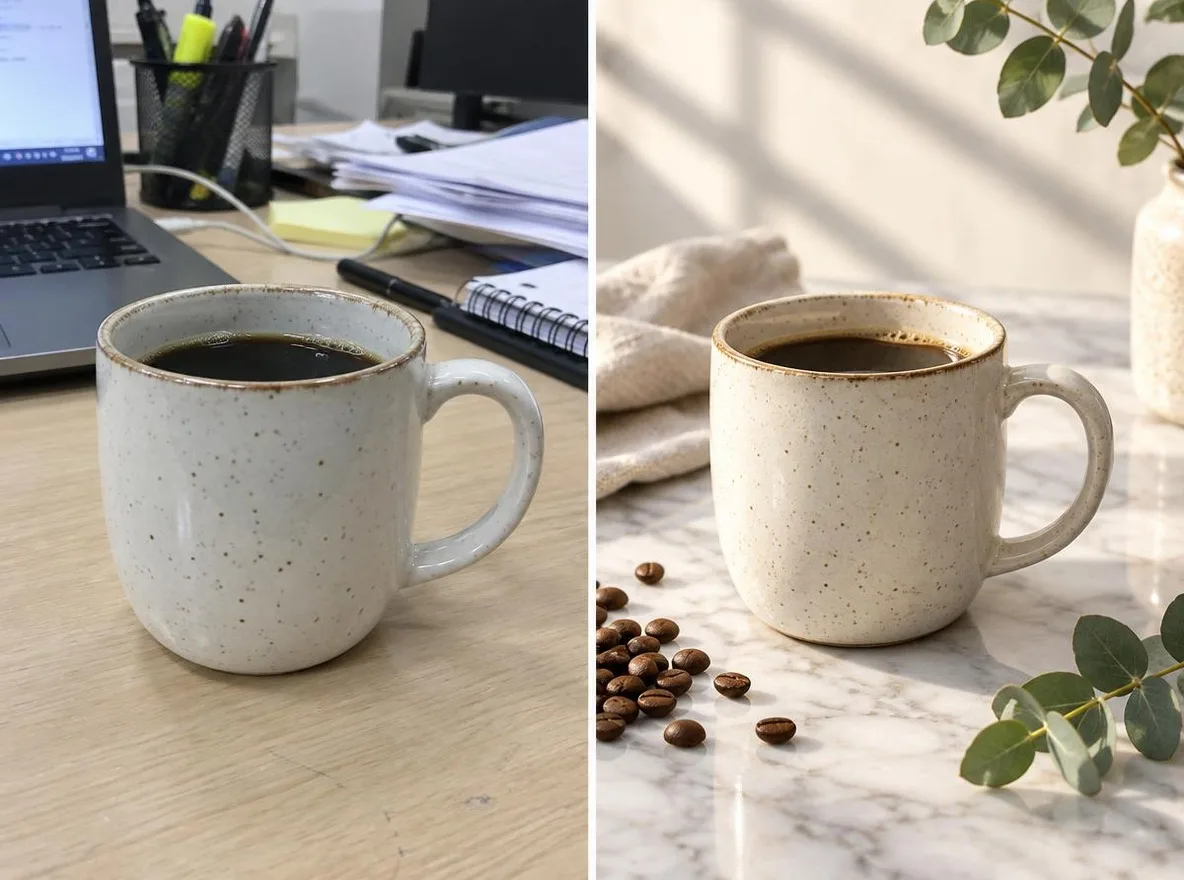
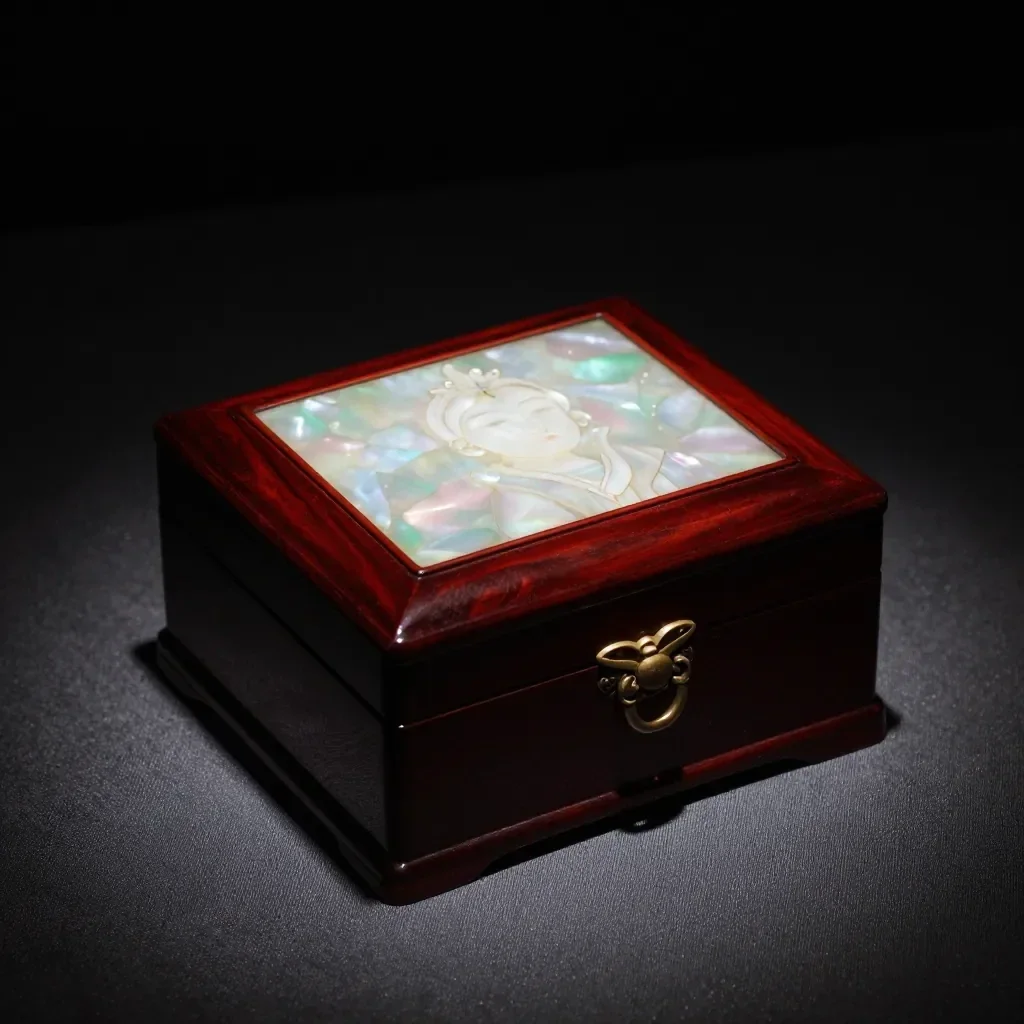
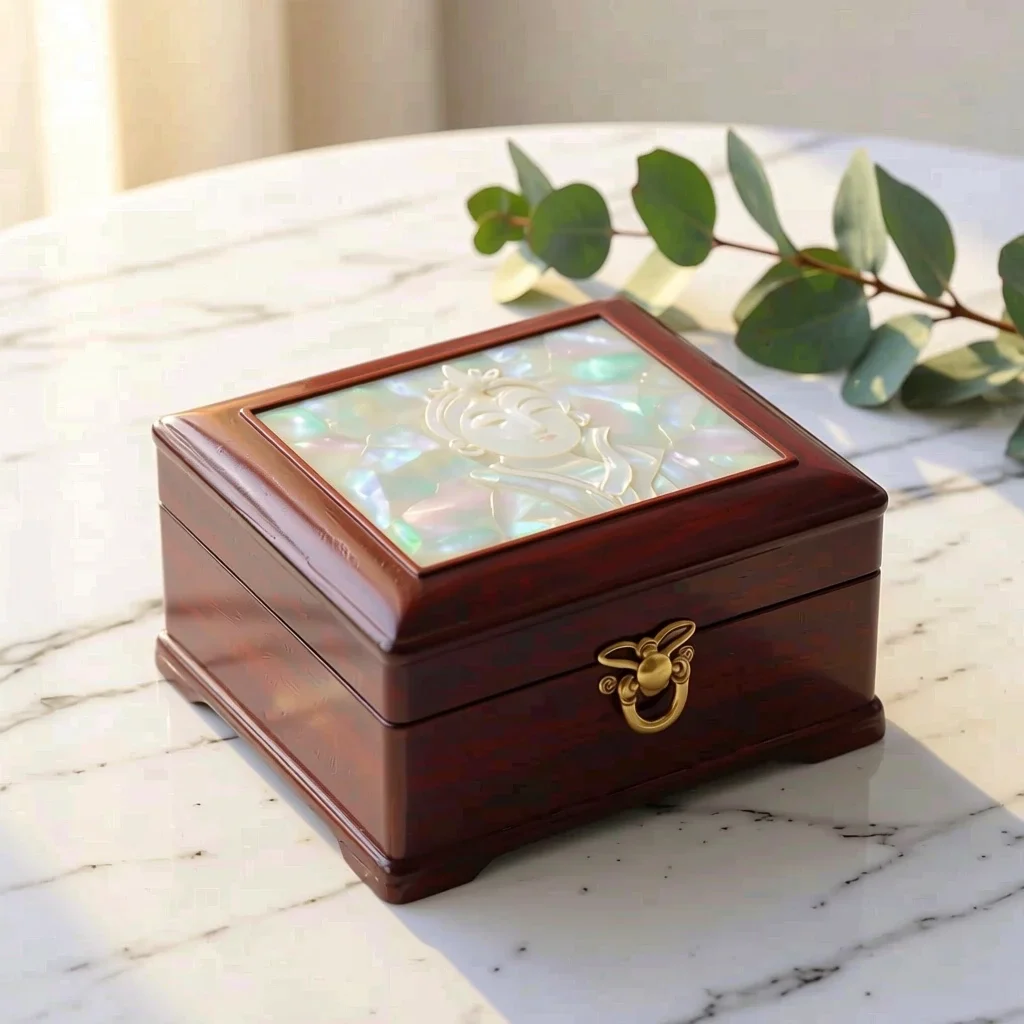
The two before-and-after pairs are real runs of the Product scenes app. The clips were made from a written description in the video studio, not from those pictures; they show the kind of product motion the models make.
 trước đây
 Sau
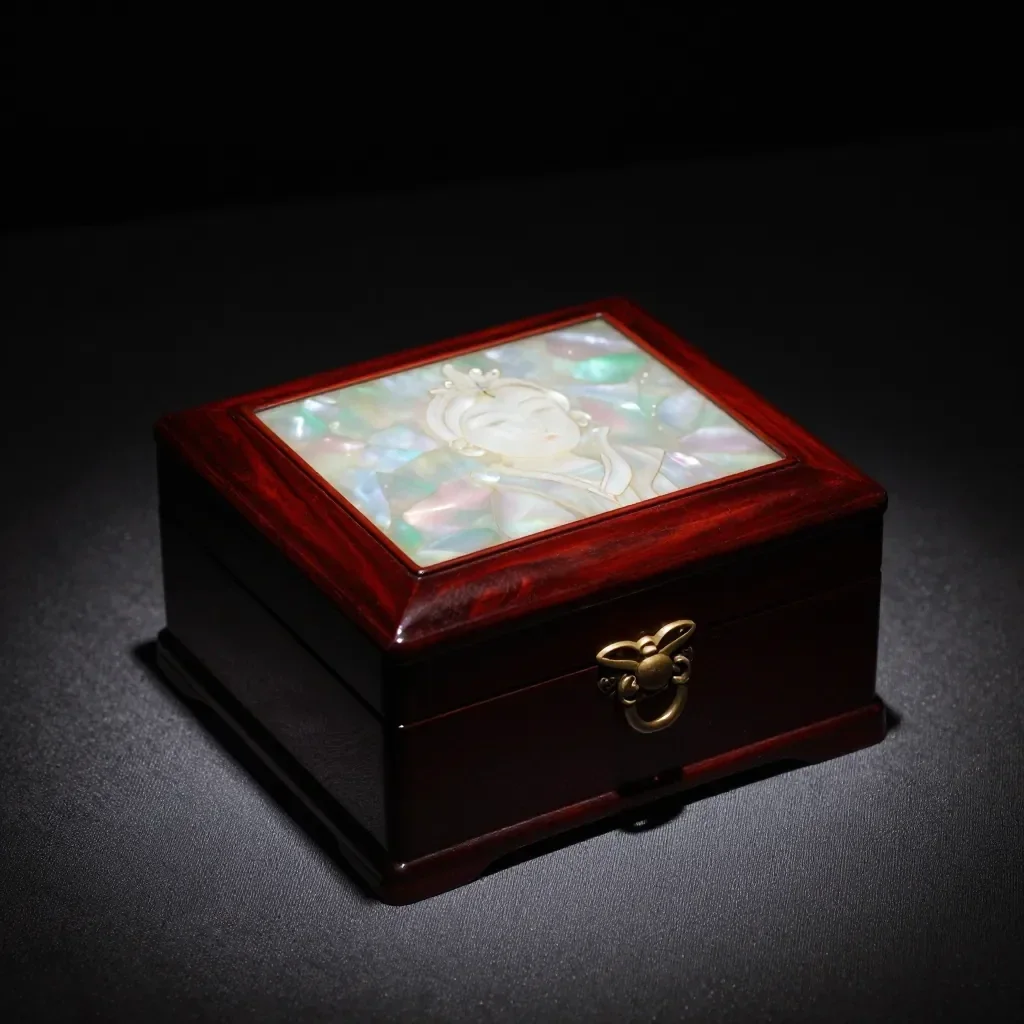 trước đây
 Sau
Why make product clips on Pickshot
Scene first, then motion
Most product photos are shot on a desk. Change the setting first, then animate, so the clip shows the product in the place you want customers to imagine it.
One first frame, many clips
Run the same picture with different motion words, such as a slow quarter turn, water droplets or a light sweep, and keep the one that suits the page.
Short clips fit the job
Five seconds is enough for a listing hero clip or a launch post, and it is the length a free account can make.
The price comes first
The app and every model show their credits on the button before a run, and Lacquer costs no credits within its free allowance.
How to make a product video
Start with a clear photo
Use one product, fully visible, on a plain background in even light. Strong reflections and cluttered backgrounds make the motion messy.
Choose a scene
Open the Product scenes app, upload the photo and pick Marble, Water, Pastel studio, Nature or Gift season. Check that the label and shape still match the real product, or skip this step.
Make a video from it
On the finished picture choose Make a video. Pick Lacquer for a free clip and describe one motion, for example a slow quarter turn while soft light sweeps across the bottle.
Check and download
Watch the whole clip. Look at the label, the edges and any text, then download it or try a different motion word.
Where product clips help
/01
Listing hero clips
A short loop-style clip at the top of a product page shows shape and finish better than one still.
/02
Launch and gift-season posts
Announce a new product, or restyle the same photo for a holiday set, and animate each version.
/03
Ad drafts
Test a look, a setting and a motion on screen before you pay for a real shoot.
Mua tín dụng khi bạn cần; tư cách thành viên chạy bằng tín dụng
Tài khoản mới nhận 50 tín dụng. Tài khoản miễn phí cũng có thể tạo ảnh không giới hạn trên trang web bằng 5 mô hình cơ bản mà không tốn tín dụng. Video Lacquer miễn phí trên trang web: 3 video mỗi ngày, tối đa 5 giây mỗi đoạn. Thành viên dùng các mô hình thuộc gói không giới hạn và không bị trừ tín dụng. Mô hình khác và API/MCP tính phí riêng.
Pickshot-series models without credits · 4 generations at a time · Unlimited free-model images (Higher priority than Free)
Pickshot-series models without credits · 8 generations at a time · Unlimited free-model images (Higher priority than Plus)
Booster Pass và gói thành viên đang tạm hết hàng. Tín dụng và gói thành viên bạn đã có vẫn dùng được cho đến khi hết hạn.
Câu hỏi
Will the product look exactly the same?
The app is told to keep its shape and label, and image to video starts from your picture, but a model can still change text, logos and small details between frames. Always compare the clip with the real product before you sell with it.
Is it free?
The clip is free on Lacquer within its allowance: Lacquer videos are free on the website: 3 a day, up to 5 seconds per clip. The Product scenes app and the other models show their price on the button before you run.
How long can the clip be?
A free account makes clips up to 5 seconds. With a membership a clip can be as long as its model makes: Lacquer 10 seconds, partner models up to 30.
Can I add music or a voice-over?
Lacquer, Satin and MiniMax H3 make sound with the picture while Generate sound is on. For music, make a track in the music generator or the song maker; for narration, use the voice generator. Combine them in any video editor.
Can I use the clip on a shop listing?
Every shop has its own rules for product pictures and video, so check them first, and make sure the clip does not misrepresent the product. Label AI-made clips where a platform asks for it.
Do I need a studio photo to start?
No. A clear photo of one product on a plain background is enough, and the Product scenes app can change the setting for you.
Bring your product to life
Pick the scene, check the price and make the first clip. Compare it with the real product before you publish.
Bắt đầu sáng tạo miễn phí