Outpainting · uncrop · new ratio
AI Image Extender: Outpaint Photos to Any Ratio
To extend an image, open it in Pickshot's AI image extender, pick a New shape such as 16:9 or 9:16, choose where the original sits, and press Expand: the AI paints the new area so the scene continues past the old edges. Each run costs 14 credits, and before you start the editor shows the new size (for example 1080×1080 → 1920×1080) and a checkered preview of the area it will fill.
Geen installatie. Geen creditcard. Standaard privé.
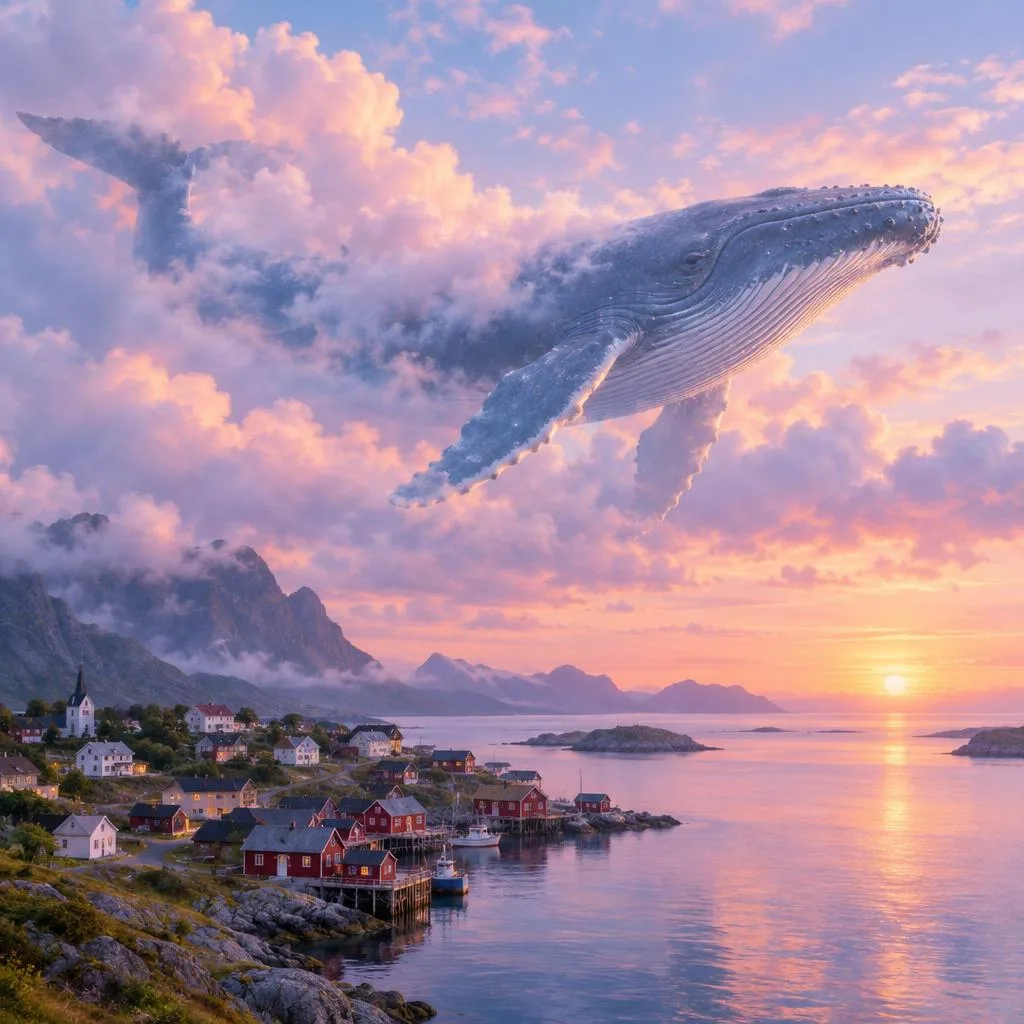
Image extender at a glance
- Prijs
- 14 credits a run, whatever the ratio; none during a membership.
- Verhoudingen
- 1:1, 4:5, 3:4, 2:3, 9:16, 16:9 and 3:2, plus 1.5× wider, which adds room on every side.
- Where the photo sits
- At the left, centre or right (top, middle or bottom when extending vertically), to leave room for a title.
- What fills the space
- Optional words such as more beach or a plain studio wall; left empty, the scene simply continues.
- Preview
- The new size (1080×1080 → 1920×1080, for example) and a checkered preview of the area to be painted, before you run.
- Account
- A free account is needed to make anything; signing up asks for no card.
- Talen
- Pages, studio and prompts in English, Korean, Japanese and Simplified Chinese
- Watermark
- No visible watermark; each file carries metadata that marks it as AI-generated.
Bijgewerkt
What is AI outpainting (uncrop)?
Outpainting, also called uncrop or generative expand, adds new picture area around a photo instead of cutting it down, so a square shot can become a wide YouTube thumbnail or a tall Reels frame without stretching or cropping the subject. In Pickshot's Expand tool you choose a target ratio (1:1, 4:5, 3:4, 2:3, 9:16, 16:9 or 3:2) or 1.5× wider, decide where the original stays, and optionally describe what should appear in the new area.
Why extend images with Pickshot
Seven ratios plus 1.5× wider
1:1, 4:5, 3:4, 2:3, 9:16, 16:9 and 3:2 cover feeds, Stories, Reels, Shorts, thumbnails and blogs, and 1.5× wider adds room on every side.
You decide where the photo sits
Keep the original at the left, center or right (top, middle or bottom when extending vertically) to leave space for a title or balance the composition.
See the new size first
The panel shows the before and after size, such as 1080×1350 → 1080×1920, and the checkered area marks exactly what will be painted in.
Guide the new area with words
Optionally write what should fill the space, such as more beach, a city skyline or a plain studio wall, or leave it empty to continue the scene.
Flat price per run
Expand costs 14 credits per run whatever the ratio, shown on the button before you start.
Then crop, upscale or add text
Fine-tune the frame with the free Crop tool, upscale the wider picture, or add a title with Add text in the same editor.
How to extend a photo with AI
Open the photo
Drop a JPG, PNG or WebP (up to 20 MB), use Choose a file, or paste it. The Expand tool opens with 16:9 selected.
Pick the new shape
Under New shape choose a ratio or 1.5× wider, then under Keep the original choose where the photo stays. The checkered area shows what will be added.
Describe and expand
Optionally fill in What to paint in the new area, press Expand (14 credits), compare with the original and download.
Cropping and padding vs. outpainting
Changing a photo to a new ratio usually means cropping it or filling the gap with plain bars. Outpainting adds real picture instead.
Reguliere hulpmiddelen
- − Cropping to a new ratio cuts off part of the subject
- − Black bars or a blurred copy fill the empty space
- − Stretching distorts faces and objects
Pickshot
- ✓ The scene continues past the original edges
- ✓ Seven target ratios plus 1.5× wider
- ✓ New size and fill area shown before you run
- ✓ 14 credits per run
Gebruiksgevallen
/01
YouTube thumbnails
Turn a portrait or square photo into a 16:9 thumbnail and leave room on one side for the title.
/02
Reels, Shorts and TikTok
Extend a horizontal shot to 9:16 so it fills a phone screen without black bars.
/03
Instagram-feed
Fit a wide photo into 4:5 or 1:1 without cropping out the people.
/04
Banners and blog headers
Extend a food or product photo to 3:2 or 16:9 for a header image with space for text.
Koop credits wanneer u ze nodig heeft; Lidmaatschappen draaien op credits
Nieuwe accounts krijgen 50 credits. Gratis accounts kunnen op de website met de 5 basismodellen onbeperkt afbeeldingen maken zonder credits te verbruiken. Lacquer-video’s zijn gratis op de website: 3 per dag, tot 5 seconden per clip. Leden gebruiken inbegrepen modellen onbeperkt zonder credits. Andere modellen en API/MCP worden apart afgerekend.
Pickshot-series models without credits · 4 generations at a time · Unlimited free-model images (Higher priority than Free)
Pickshot-series models without credits · 8 generations at a time · Unlimited free-model images (Higher priority than Plus)
Booster Passes en lidmaatschappen zijn tijdelijk uitverkocht. Credits en lidmaatschappen die je al hebt, blijven werken tot ze aflopen.
Vragen
How much does the image extender cost?
14 credits per run, whatever the ratio. The price is on the Expand button before you run, and credits come from a Booster Pass (none are needed during a membership).
Which ratios can I extend to?
1:1, 4:5, 3:4, 2:3, 9:16, 16:9 and 3:2, plus 1.5× wider, which adds space on all sides. If the photo already has the ratio you pick, the editor asks you to choose another.
Do I have to describe the new area?
No. Leave What to paint in the new area empty and the scene is simply continued. Add a short description only when you want something specific there.
What files can I use?
JPG, PNG or WebP up to 20 MB. Photos larger than 4096 px on the long side are scaled down to 4096 px when opened.
Is my photo uploaded?
When you press Expand, the photo is sent to the AI model provider that runs the job. Free tools such as crop and colour stay in your browser. See the privacy policy for details.
Can I use extended images commercially?
Check Pickshot's Terms of Service and the model licence before commercial use, and only extend photos you own or have permission to use.
Does it work on a phone?
Yes. With no app to install, pick a ratio in your mobile browser and expand right away.
Give your photo more room
Pick a ratio, see the new size and price, and expand. Credits come from a Booster Pass; none are needed during a membership.
Begin gratis met maken